ViewGroup 안에 ConstraintLayout View 추가한 경우 펼치고 접을때 이슈
ViewGroup 안에 ConstraintLayout View 추가한 경우 펼치고 접을때 이슈
해당 이슈를 영상으로 우선 보자.
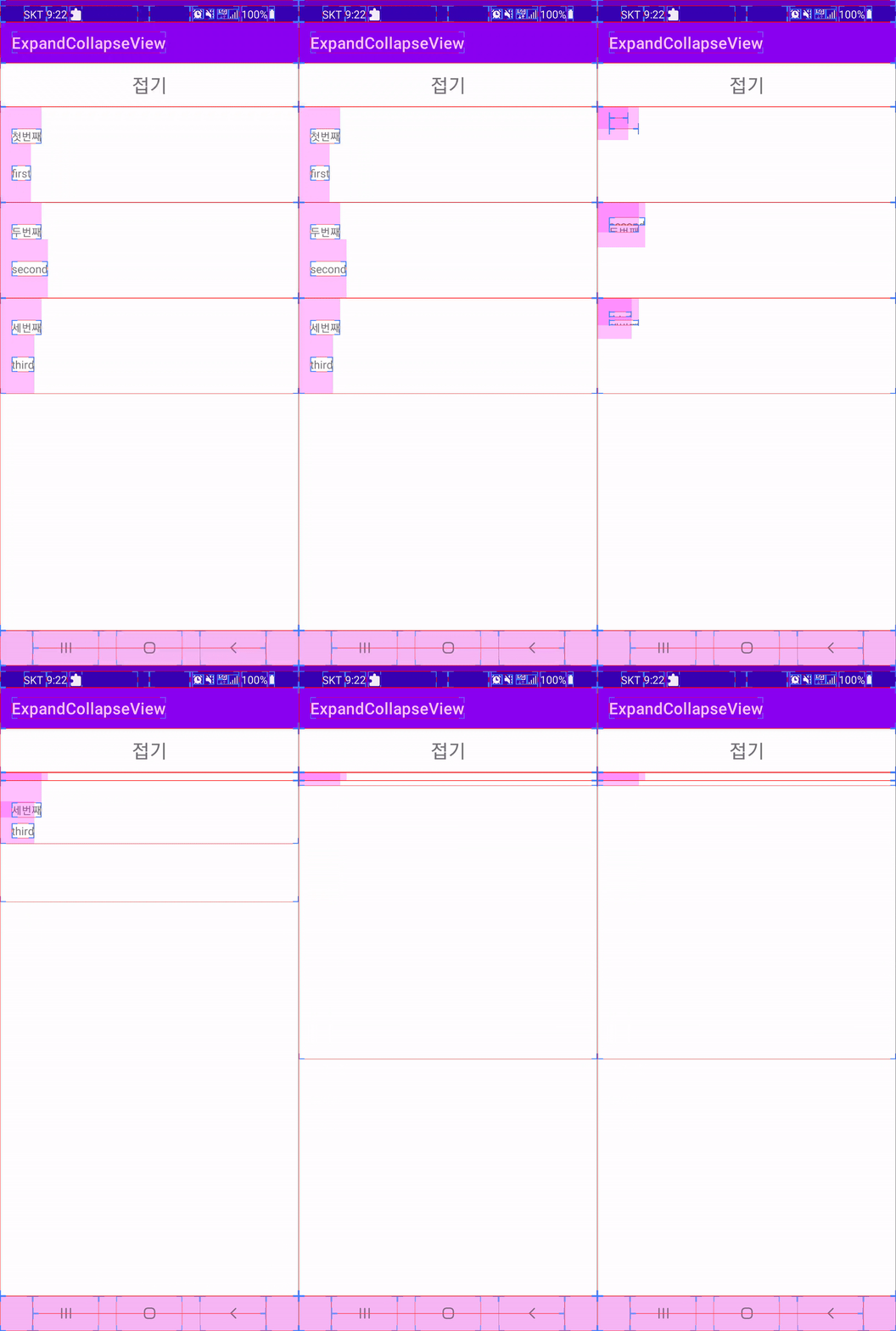
ViewGroup 자체는 늘어났다가 줄었다가 잘 되는걸 볼 수 있지만 ConstraintLayout 뷰 안의 텍스트 뷰들이 제대로 자리를 잡지 못하면서 뷰가 깨져 보인다.
해당 이슈는 ConstraintLayout 은 동적으로 뷰가 변경 될 때는 ConstraintLayout 연결 관계를 clone 해서 다시 해당 뷰에 적용 시켜주어야 제대로 변경이 된다.
그래서 ViewGroup 안에 모든 ConstraintLayout 을 찾아서 clone 해서 apply 까지 해주는 notifyConstraintView fun 을 만들어서 해결 하였다.
아래는 전체적인 코드인데 notifyConstraintView 을 사용하면 정상작동 안하면 위와 같이 뷰가 깨지는걸 볼 수 있다.
1
2
3
4
5
6
7
8
9
10
11
12
13
14
15
16
17
18
19
20
21
22
23
24
25
26
27
28
29
30
31
32
33
34
35
36
37
38
39
40
41
42
43
44
45
46
47
48
49
50
51
52
53
54
55
56
57
58
59
60
61
62
63
64
65
66
67
68
69
70
71
72
73
74
75
76
77
78
79
80
81
82
83
84
85
86
87
88
89
90
91
92
93
94
95
96
97
98
99
100
101
102
103
104
105
106
107
108
109
110
111
112
113
114
class MainActivity : AppCompatActivity() {
    private var _binding: ActivityMainBinding? = null
    protected val binding: ActivityMainBinding
        get() = _binding as ActivityMainBinding

    private var valueAnimator: ValueAnimator? = null

    override fun onCreate(savedInstanceState: Bundle?) {
        super.onCreate(savedInstanceState)
        _binding = ActivityMainBinding.inflate(layoutInflater)
        binding.apply {
            setContentView(root)
            tvTitle.text = "접기"
            tvTitle.setOnClickListener {
                expandOrCollapse()
            }
        }
        initLinearLayoutContent()
    }

    private fun initLinearLayoutContent() {
        listOf(
                Item("첫번째", "first"),
                Item("두번째", "second"),
                Item("세번째", "third")
        ).forEach {
            val itemContentBinding = ItemContentBinding.inflate(LayoutInflater.from(this), binding.llContent, false).apply {
                tvTitle.text = it.title
                tvContent.text = it.content
            }
            binding.llContent.addView(itemContentBinding.root)
        }
    }

    private fun expandOrCollapse() {
        binding.apply {
            if (tvTitle.text == "접기") {
                tvTitle.text = "펼치기"
                collapse(llContent)
            } else {
                tvTitle.text = "접기"
                expand(llContent)
            }
        }
    }

    private fun expand(view: View) {
        view.visibility = View.VISIBLE
        val widthSpec = View.MeasureSpec.makeMeasureSpec(0, View.MeasureSpec.UNSPECIFIED)
        val heightSpec = View.MeasureSpec.makeMeasureSpec(0, View.MeasureSpec.UNSPECIFIED)
        view.measure(widthSpec, heightSpec)
        valueAnimator = getSlideAnimator(0, view.measuredHeight, view).apply {
            start()
        }
    }

    private fun collapse(view: View) {
        val finalHeight = view.height
        valueAnimator = getSlideAnimator(finalHeight, 0, view).apply {
            addListener(object : Animator.AnimatorListener {
                override fun onAnimationEnd(animator: Animator) {
                    view.visibility = View.GONE
                }

                override fun onAnimationStart(animator: Animator) {}
                override fun onAnimationCancel(animator: Animator) {}
                override fun onAnimationRepeat(animator: Animator) {}
            })
            start()
        }
    }

    private fun getSlideAnimator(start: Int, end: Int, view: View): ValueAnimator {
        val animator = ValueAnimator.ofInt(start, end)
        animator.duration = 300
        animator.addUpdateListener { valueAnimator -> //Update Height
            val value = valueAnimator.animatedValue as Int
            val layoutParams = view.layoutParams
            layoutParams.height = value
            notifyConstraintView(view)
            view.layoutParams = layoutParams
        }
        return animator
    }

    /*
     * ConstraintSet clone 사용하기 때문에 부모 ConstraintLayout 의 자식 뷰들은 모두 id를 지정해 주어야 함.
     * */
    private fun notifyConstraintView(view: View) {
        if (view is ViewGroup) {
            if (view.childCount > 0) {
                view.children.forEach {
                    if (it is ViewGroup) {
                        if (it is ConstraintLayout) {
                            with(ConstraintSet()) {
                                clone(it)
                                applyTo(it)
                            }
                        }
                    } else {
                        notifyConstraintView(it)
                    }
                }
            }
        }
    }

    data class Item(val title: String, val content: String)

    override fun onDestroy() {
        valueAnimator?.cancel()
        super.onDestroy()
    }
}

뷰가 깔끔하게 잘 나오는것을 확인 할 수 있다.
이 기사는 저작권자의 CC BY 4.0 라이센스를 따릅니다.